
Multiple branches
Multiple branches from one account
If you have more than one location, you manage them all from one account; for each branch you define separate staff, services, working hours and a calendar. You switch between branches in seconds from the top menu.
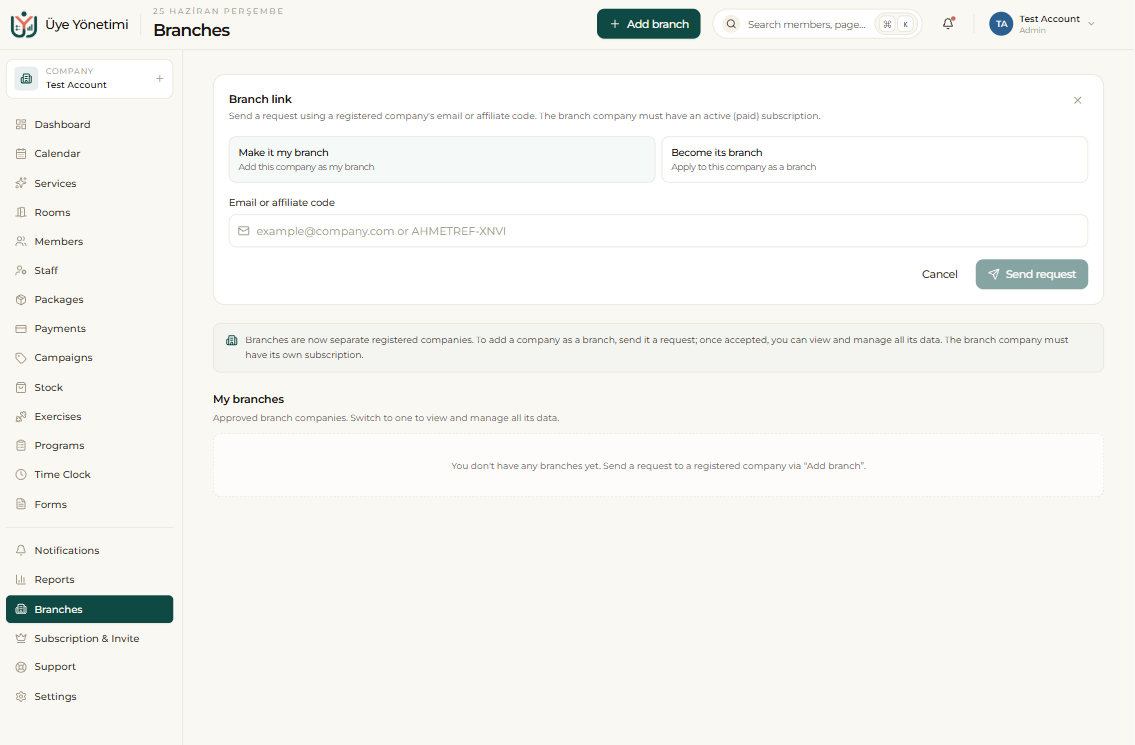
Branches are registered as separate companies. To add a company as a branch you send it a request; once it accepts, you can view and manage all its data. The branch company must have its own active (paid) subscription.
Separation, comparison and permissions
Members, packages, payments and reports are separated by branch, so you clearly see each branch’s own performance. Whenever you want, you compare all branches in a single report.
You can limit permissions by branch; for example, a branch manager sees only their own branch’s data, while head office accesses all branches.
Step by step
- 1 Open the “Branches” page from the left menu.
- 2 Click “Add branch” and send a request using the company’s email or affiliate code.
- 3 Once the branch company accepts (it must have its own active subscription), it appears under “My branches”.
- 4 Switch between branches from the branch selector in the top menu.
- 5 See that members, packages, payments and reports are separated by branch.
- 6 Authorize a branch manager to see only their own branch; head office accesses all branches.