
Calendar & appointments
Views and navigation
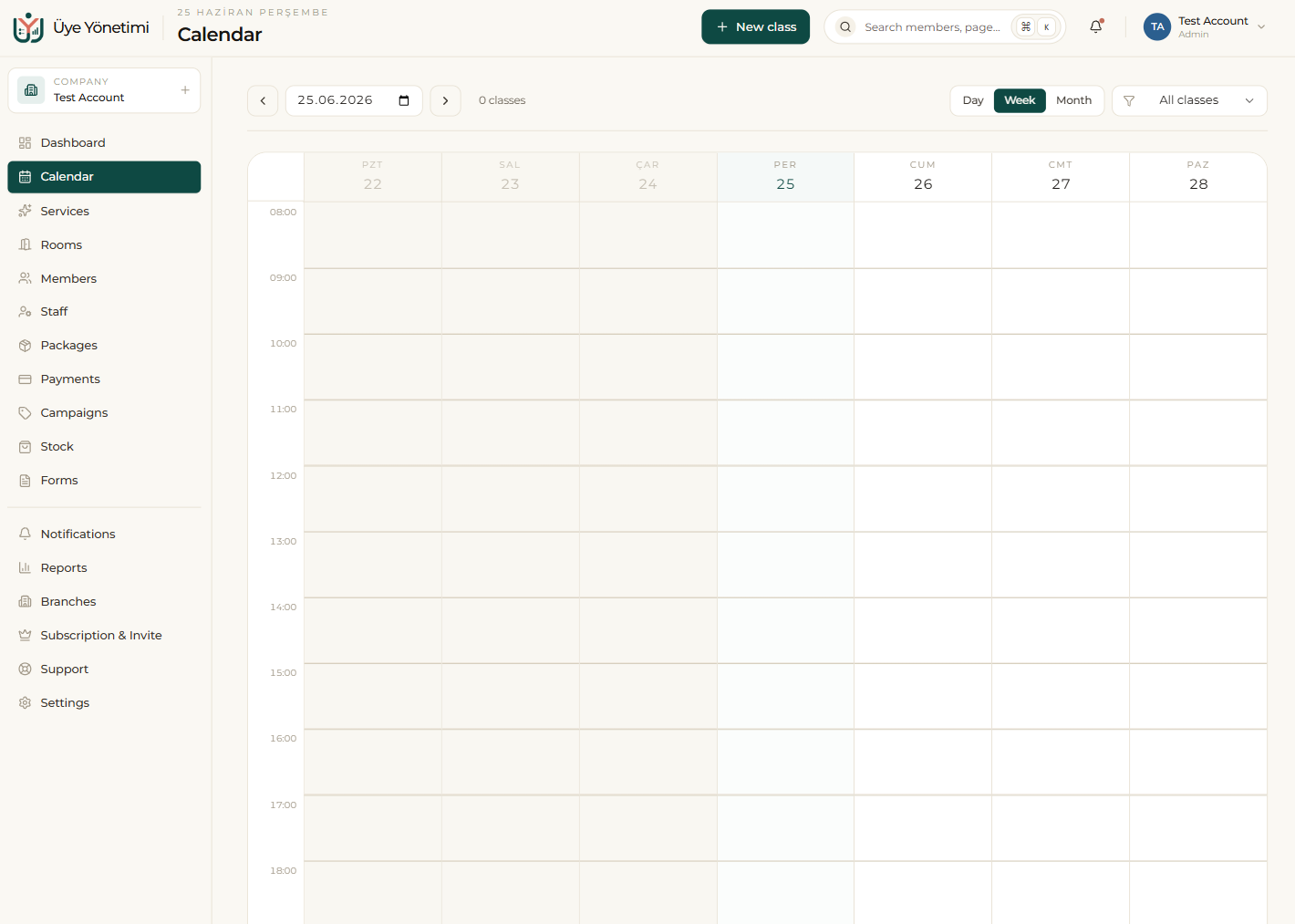
The calendar offers three views: day, week and month. The day view is ideal for planning a busy day hour by hour, the week view for seeing overall occupancy, and the month view for the long-term picture.
By filtering by staff member or room you can see only the calendar you care about, focusing on a single instructor’s day even in a crowded schedule.
Creating an appointment
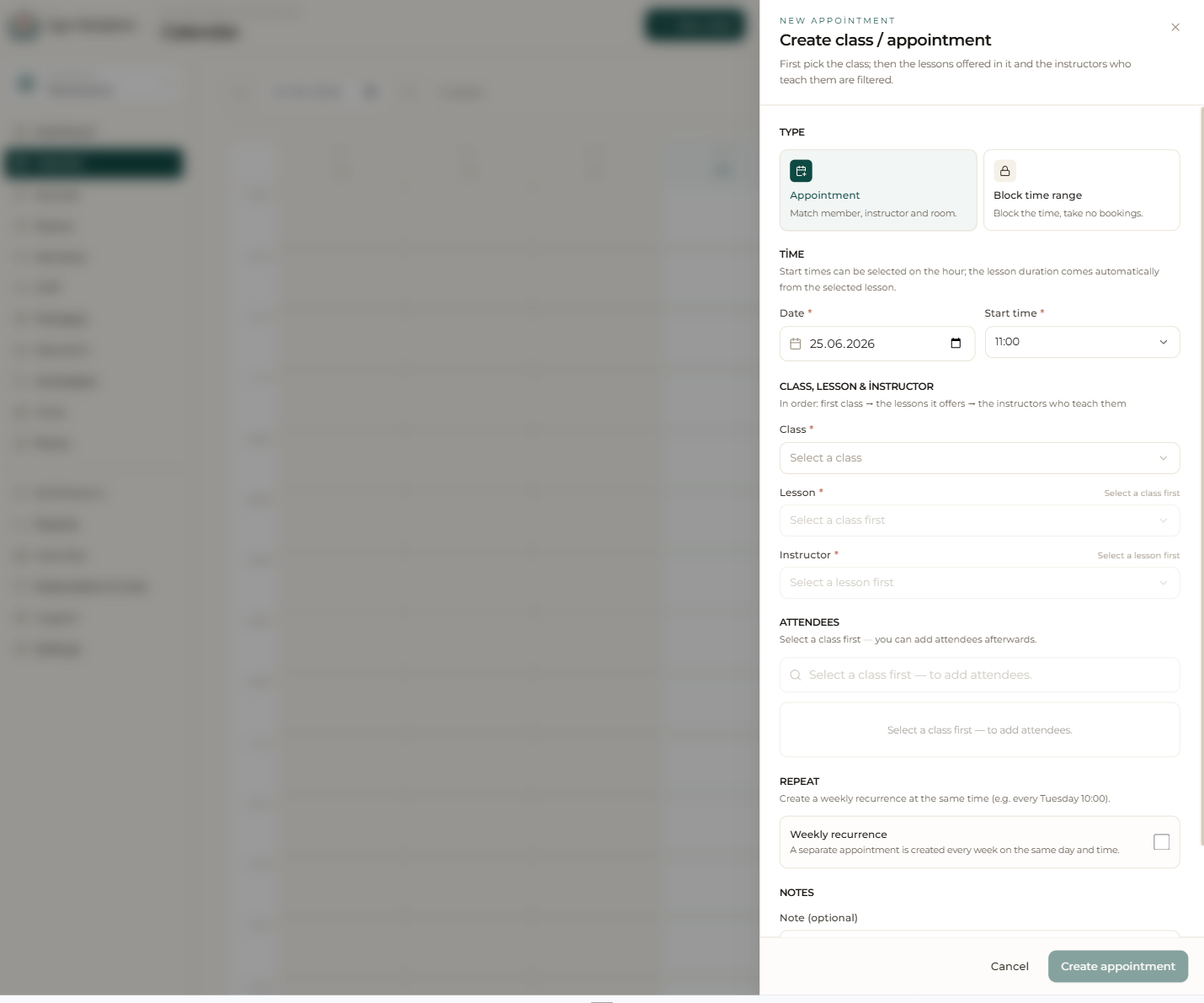
You create an appointment by clicking an empty time slot and choosing the service, staff member and member; the duration and fee come in automatically from the service definition. Besides one-to-one appointments, you can set a capacity for group classes and add participants one by one.
For regular classes you can define a recurrence rule; for example, when you say “every Tuesday at 10:00” the system creates the upcoming weeks’ appointments automatically. You can drag an appointment to another time, and resize it from its edge to change its duration. The same slot length and cancellation terms can be adjusted any time from Settings › Operation rules.
Conflicts and status
The system does not let you book the same staff member or room twice for the same time; it warns you about possible conflicts instantly. You mark each appointment as “attended”, “no-show” or “cancelled”; this status affects both the package deduction and the reports.
Step by step
- 1 Open “Calendar” from the left menu; pick the day, week or month view at the top.
- 2 If needed, filter by staff member or room to show only the relevant calendar.
- 3 Click an empty time slot (or choose “New class”).
- 4 In the dialog, choose the service, staff member and member; the duration and fee come in automatically.
- 5 For a group class, set the capacity and add participants; for a regular class, define a recurrence such as “every Tuesday at 10:00”.
- 6 Save; the system automatically prevents time conflicts for the same staff member/room.
- 7 Drag an appointment to change its time, and pull its edge to adjust its duration.
- 8 After the class, click the appointment and mark it as “Attended”, “No-show” or “Cancelled”.
When you mark an appointment “attended”, the relevant session is deducted from the member’s package automatically; no session is deducted for a member who didn’t show up.