
Members
Creating a member
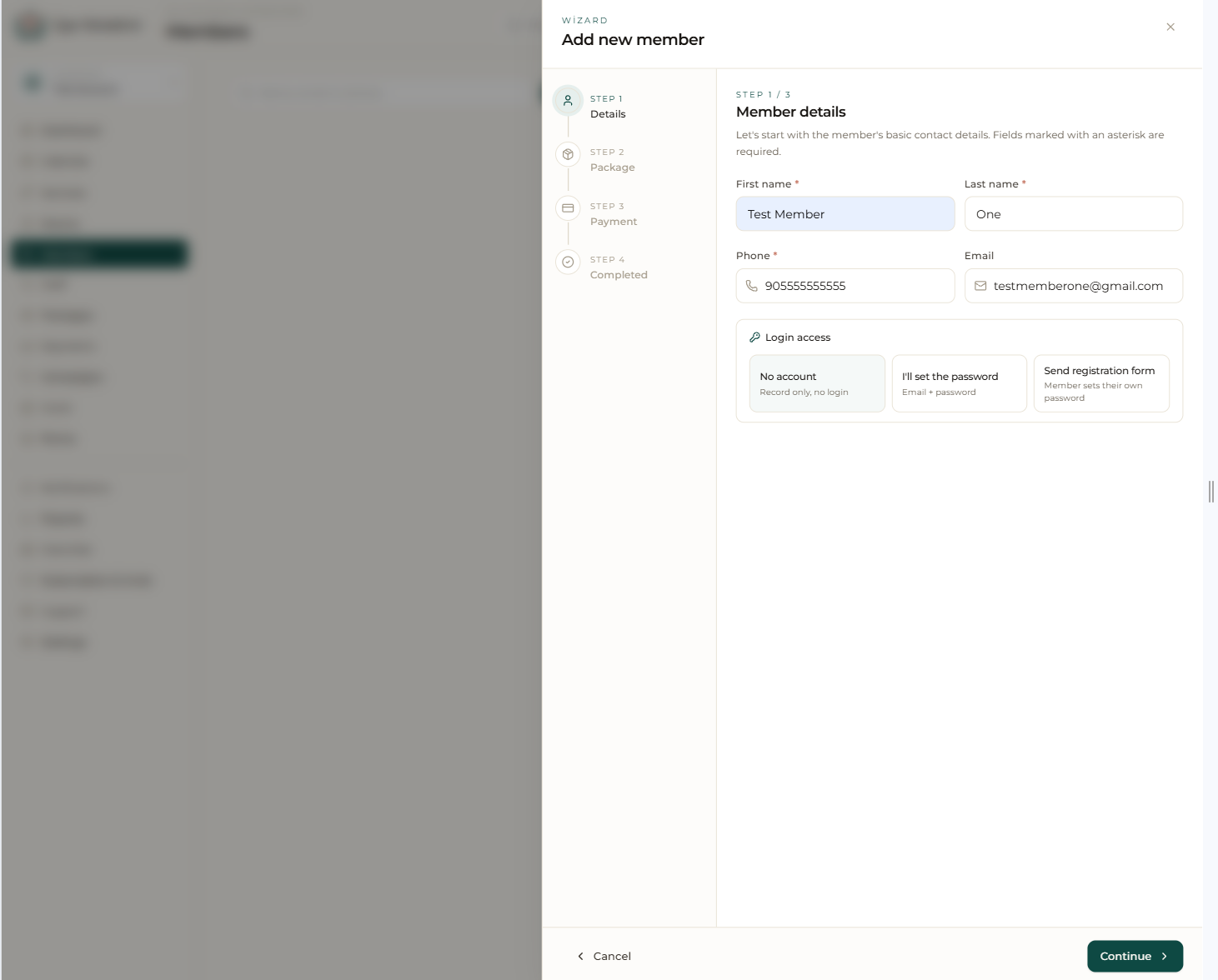
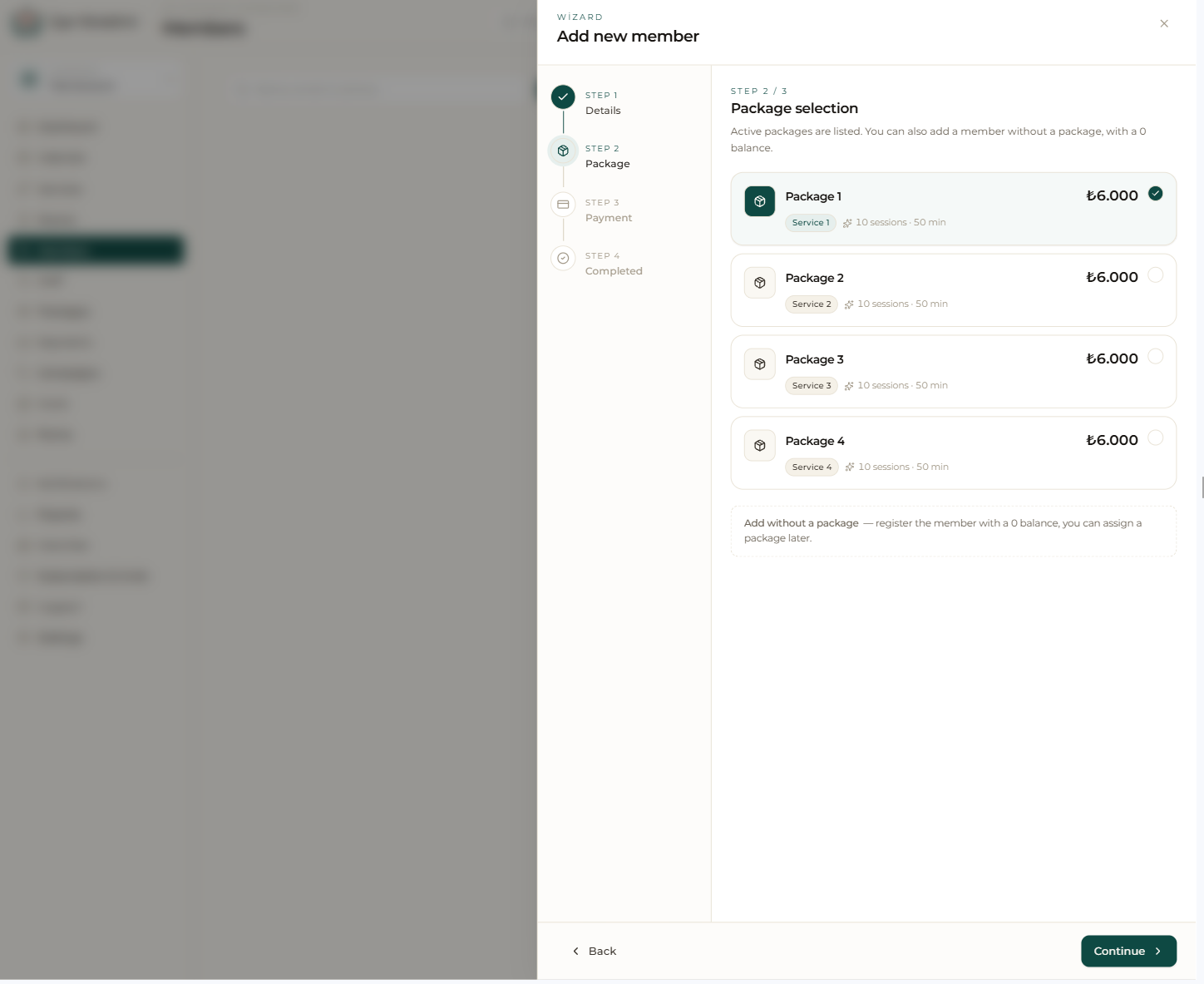
When adding a new member only the name and phone are required, so you can open a record in seconds during busy moments. As you need them, you can fill in fields like email, date of birth, gender, address, emergency contact and free-form notes later. The “Add new member” wizard walks you through it in three steps: details, package and payment.
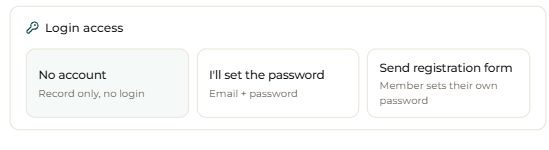
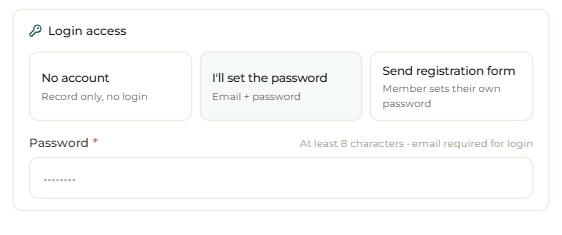
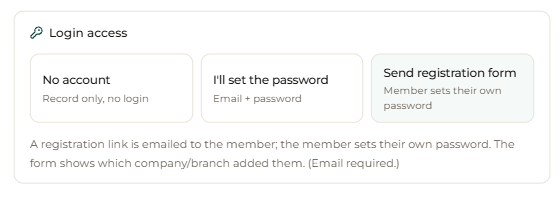
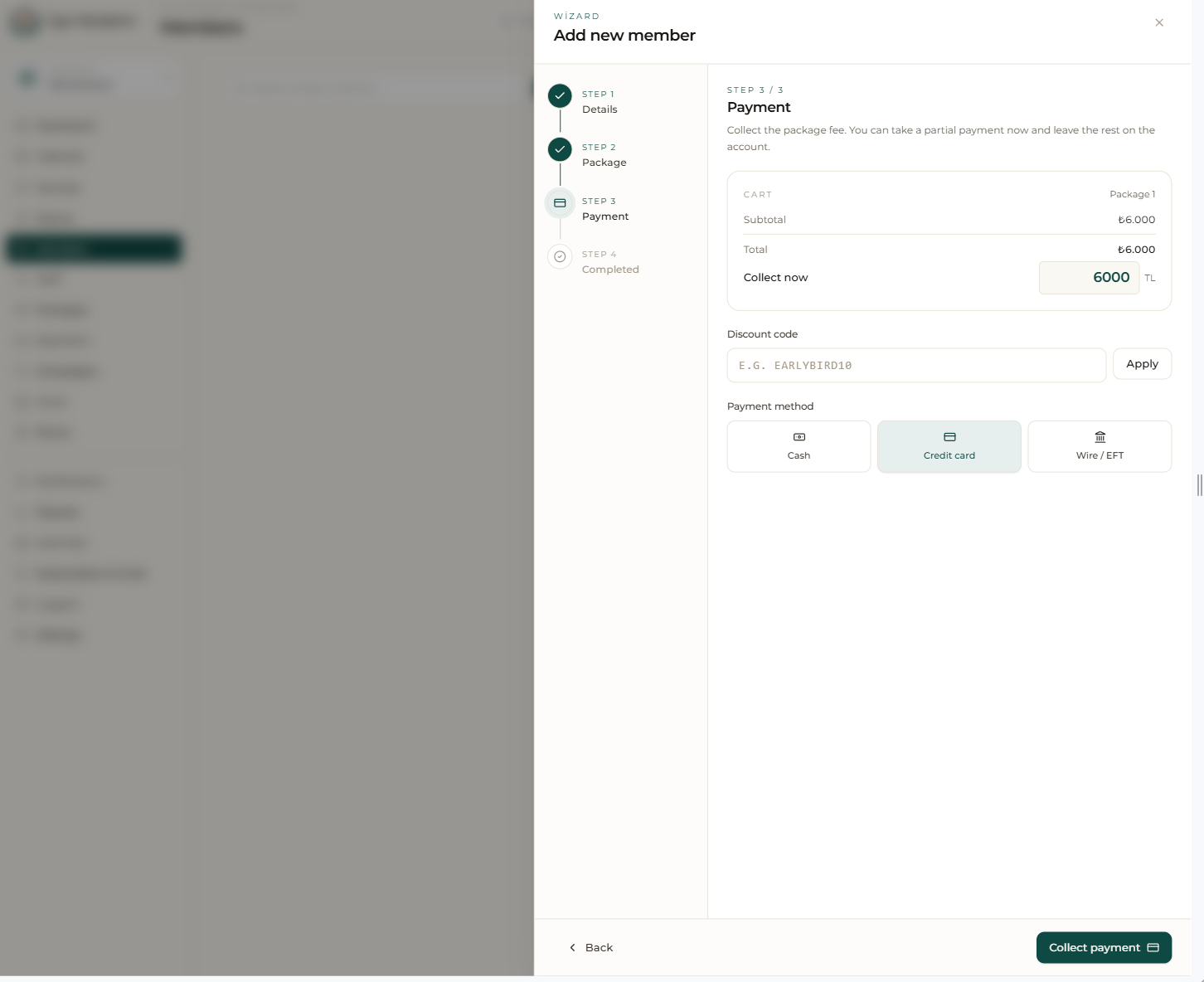
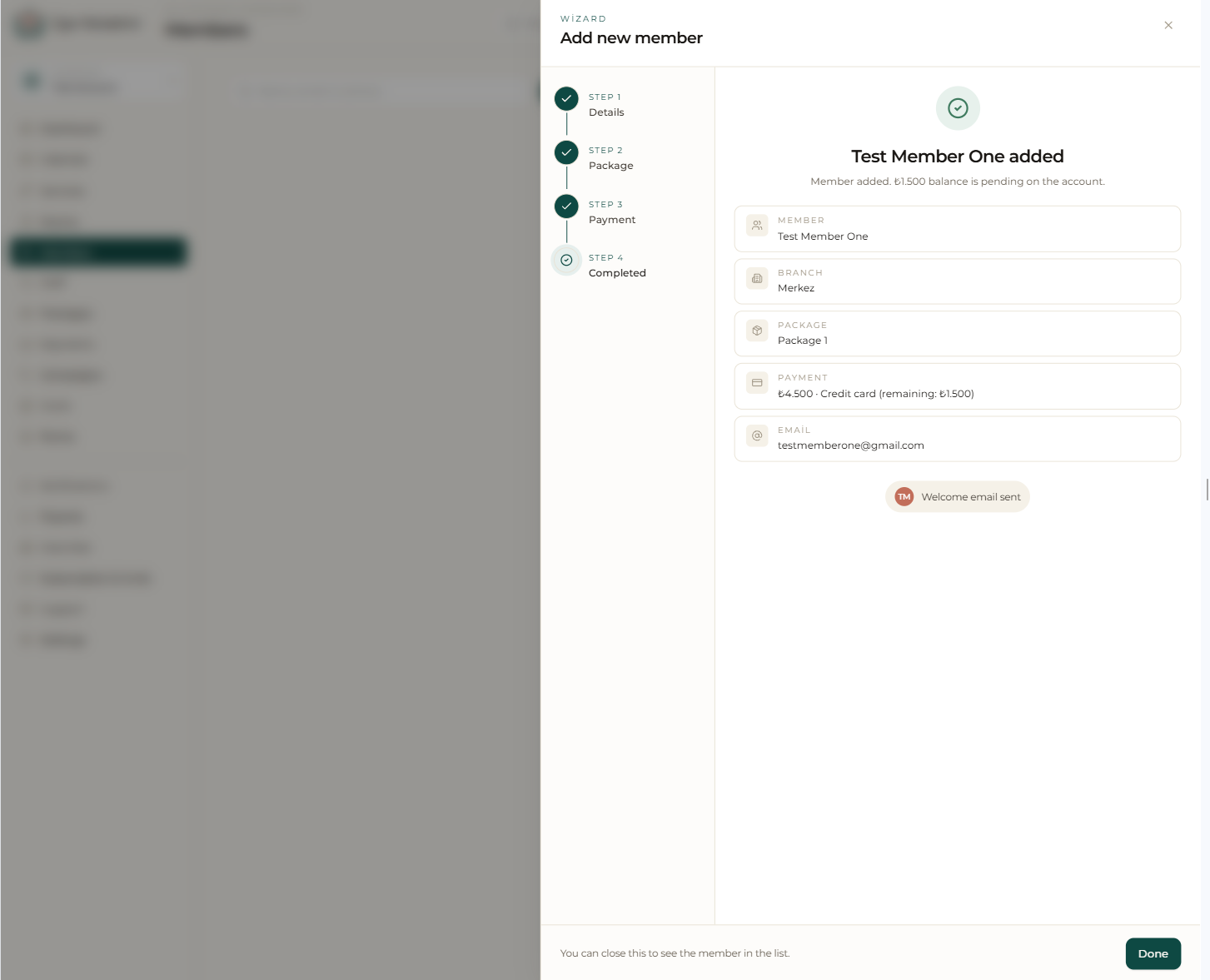
On the first step you also choose how the member logs in: “No account” (record only), “I’ll set the password”, or “Send registration form” so the member sets their own password. On the next steps you can attach a package and collect the first payment — in full or in part — all in one flow, and the wizard ends with a clear summary.
The member card
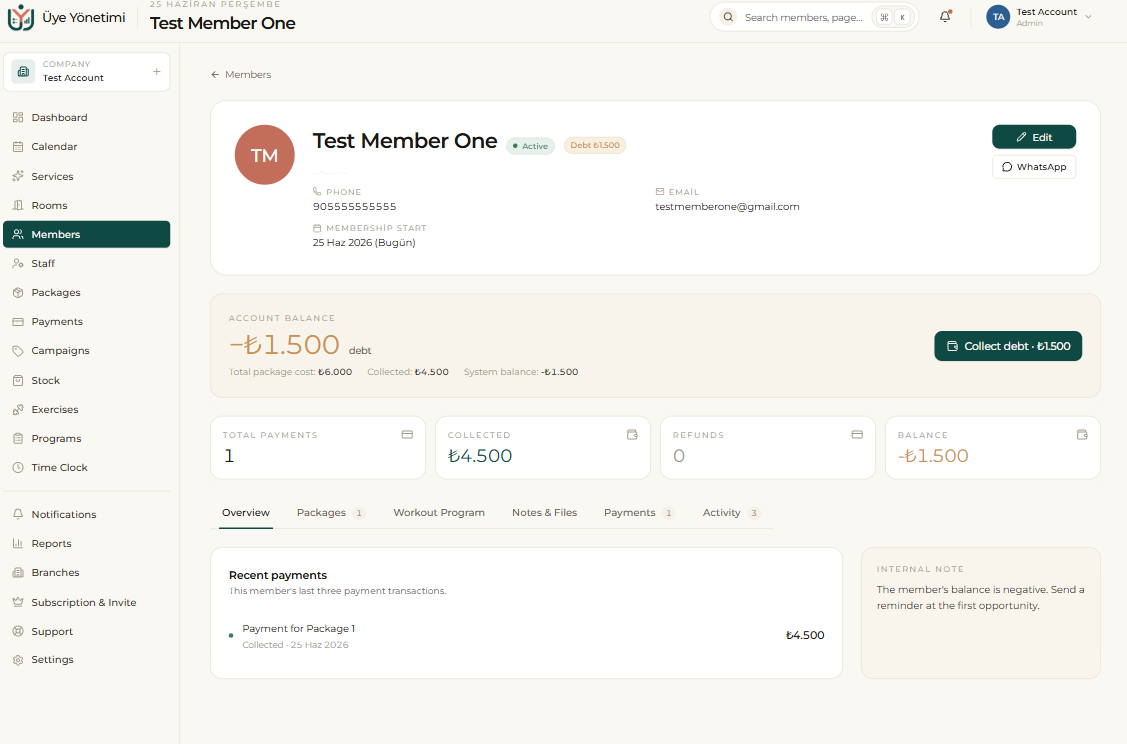
Each member’s card is the hub where everything about that person is gathered. The card holds the account ledger (debt, payments, refunds and current balance), active and past packages with remaining sessions, the full appointment history, uploaded files and notes — all in one place.
You act directly from the card in one click: collect a payment, create a new appointment, assign a package or send a WhatsApp message. Every action you take is reflected on the card and in the related reports instantly; there is no need to write anything down separately. Tabs like Overview, Packages, Workout Program, Notes & Files, Payments and Activity keep the detail organized.
Search and filtering
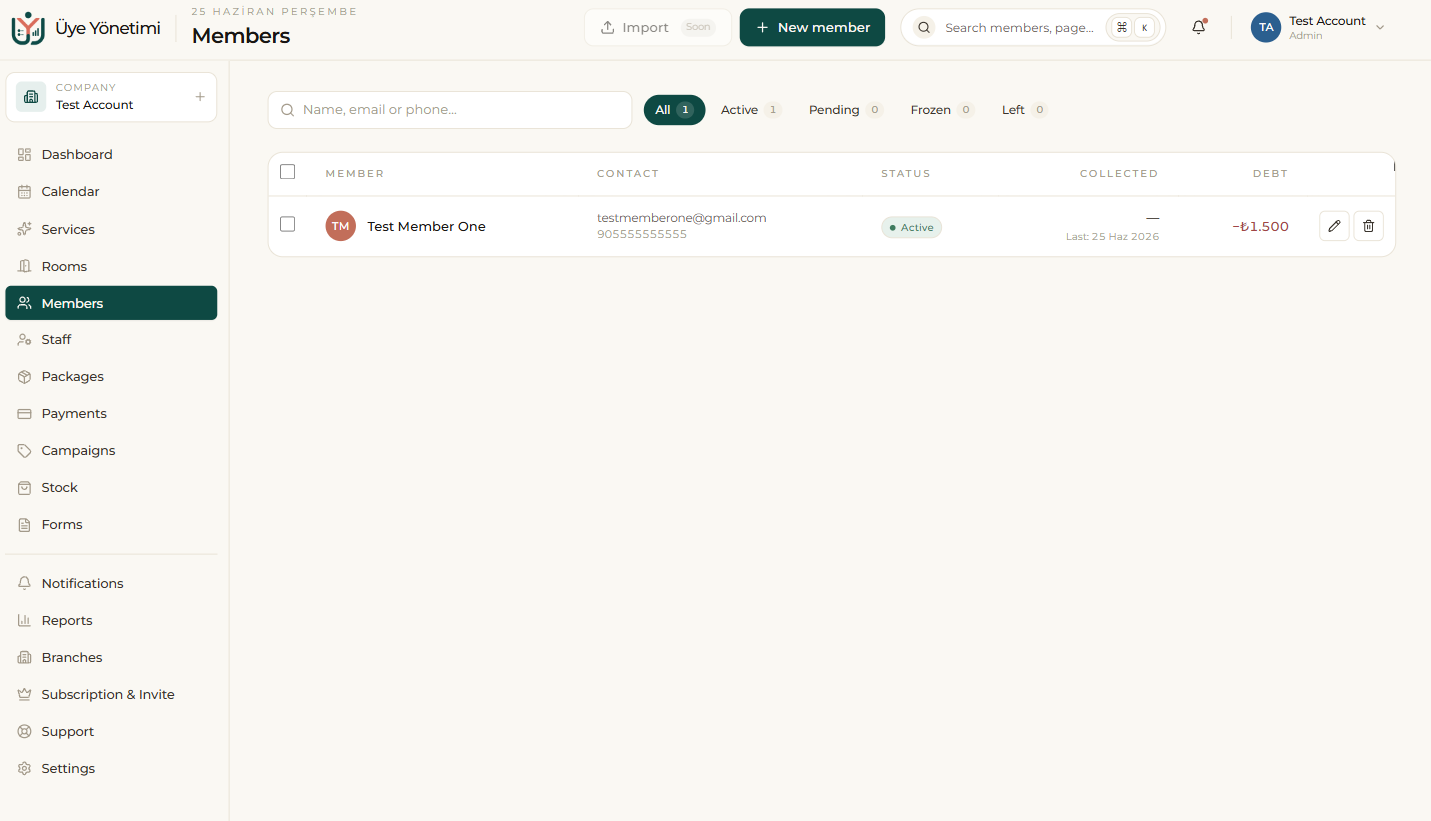
In the member list you can search by name, phone or tag, and filter members who are in debt, inactive, or whose package is about to end. This helps you quickly decide who to call or who to run a campaign for. You can manage your tags (for example “VIP”, “Trial”, “Regular”) from Settings and assign them on the member card.
The top tabs (All, Active, Pending, Frozen, Left) let you narrow members by status in one click. If you want to bring your existing member data from another system, our team can migrate it for you (on request).
Step by step
- 1 Open the “Members” page from the left menu.
- 2 Click the “New member” button at the top right.
- 3 On the form, fill in the required first name, last name and phone; add email and other details if needed, and choose a login access option.
- 4 Move to the next step to attach a package, or add the member without a package (0 balance).
- 5 Collect the first payment in full or in part and pick a method (cash, card, transfer), then finish.
- 6 From the member card, use “Assign package” or “Collect payment” for later transactions.
- 7 From the same card, do “Create appointment” and “Send message” in one click.
- 8 Use the search and filters above the list (debt, inactive, tag) to quickly narrow down members.
Filter members who are in debt or whose package is about to end, and send bulk reminders from a single screen.