
Installing as an app
Why install it?
Member Management is web-based; you can sign in from your browser and use it right away. But if you like, you can “install it as an app” on your device. Once installed, it opens in its own window with its own icon, just like a downloaded app, so you don’t have to type an address into the browser every time.
This install is not a download from the App Store or Play Store; the page itself is added to your device as a shortcut (a PWA). So no extra installer is downloaded, it takes up no space, and it always stays up to date.
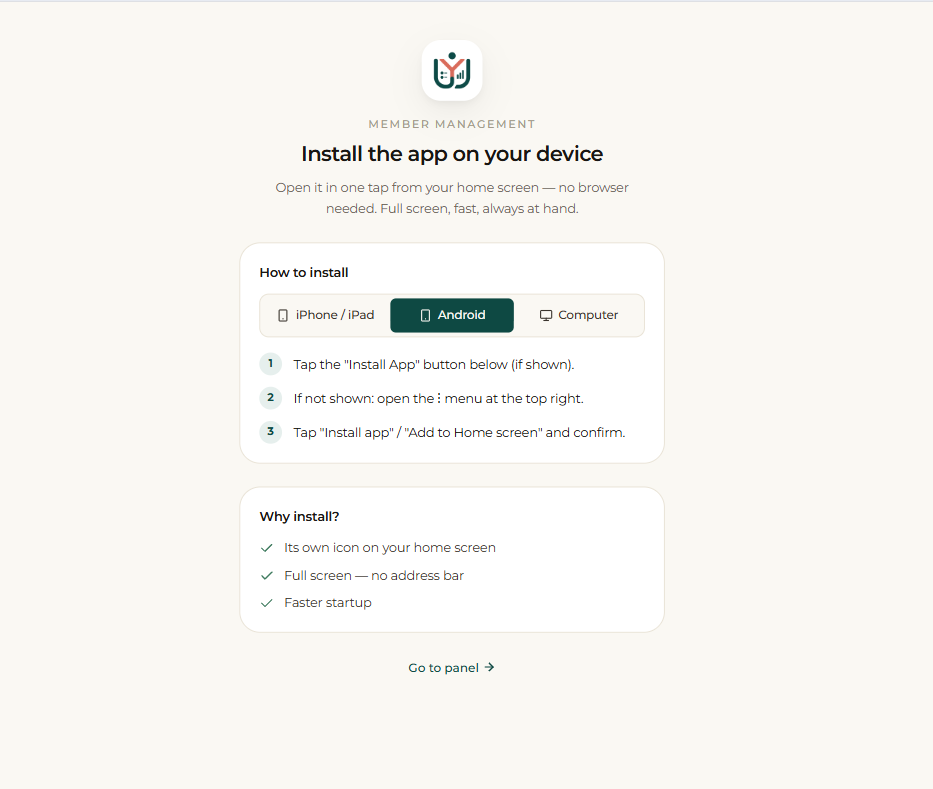
On phone and tablet (Android / iPhone)
On Android, open the site in Chrome; from the menu (⋮) next to the address bar choose “Install app” or “Add to Home screen”. The icon is added to your home screen.
On iPhone and iPad, open the site in Safari; tap the “Share” icon at the bottom (the square with an upward arrow) and choose “Add to Home Screen”. The app appears on your home screen with its own icon.
On computer (Windows / Mac)
When you open the site in Chrome or Edge, a small “install” icon appears on the right side of the address bar; click it and confirm, and the app is added to your desktop and Start menu (Launchpad/Dock on Mac).
From then on you open the app in one click from its icon, in its own window without tabs, just like your other programs.
Step by step
- 1 Android: open the site in Chrome → menu (⋮) → “Install app” / “Add to Home screen”.
- 2 iPhone/iPad: open the site in Safari → “Share” → “Add to Home Screen”.
- 3 Windows: open the site in Chrome or Edge → click the “install” icon in the address bar → “Install”.
- 4 Mac: open the site in Chrome or Edge → click the “install” icon in the address bar; the app is added to Launchpad/Dock.
- 5 After installing, open the app in one click from the icon that was created, in its own window.
Installing as an app downloads no file to your device; the page is added as a shortcut and always opens with the latest version automatically.