
Rooms
Defining rooms and spaces
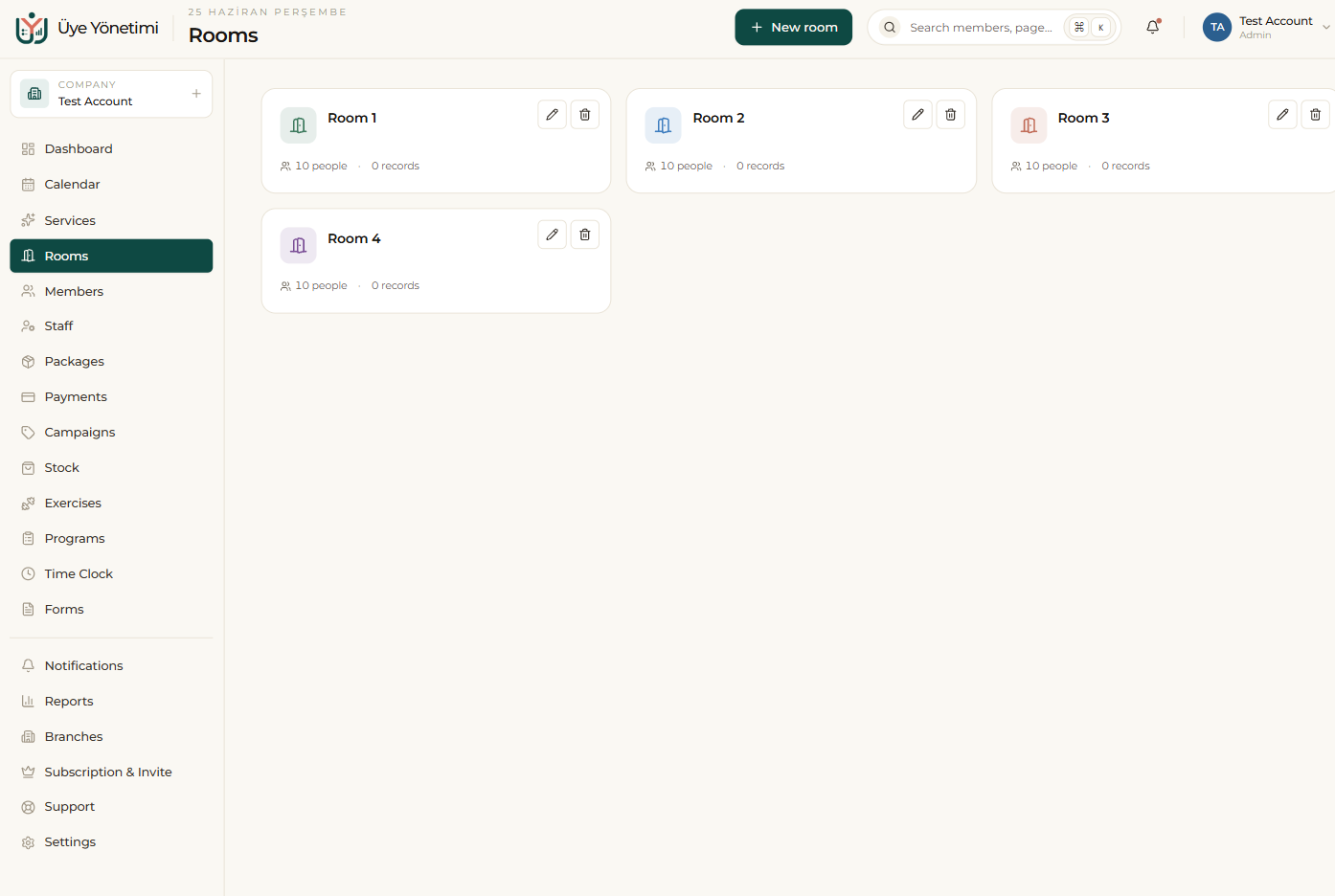
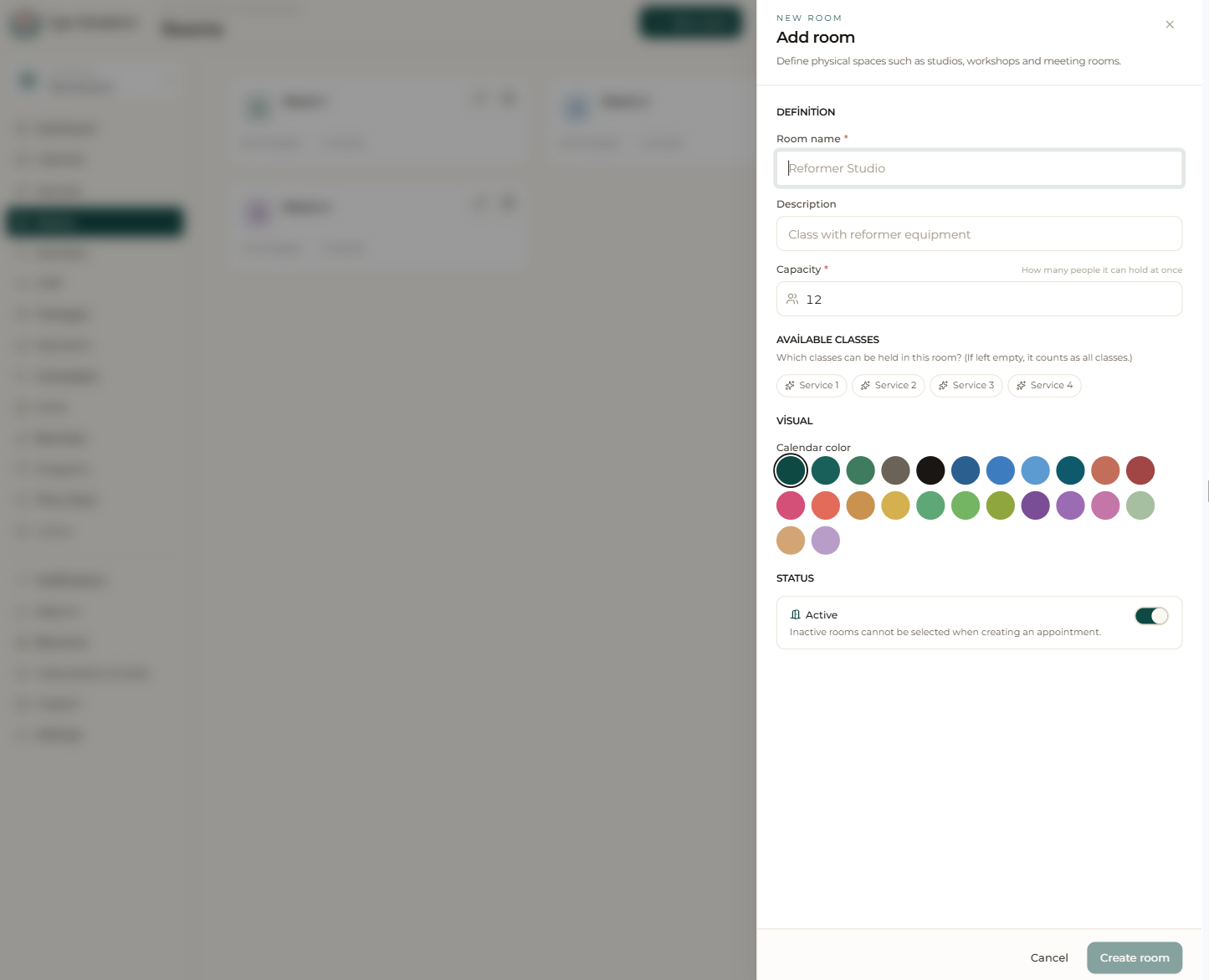
If you work from multiple halls, classrooms, rooms or offices, you define each here with a capacity and a calendar color. The capacity sets how many people a group class can take at once; the calendar color lets you tell that room’s appointments apart on the calendar.
If you operate from a single space you don’t have to define rooms; however, defining them helps prevent conflicts and keeps the calendar organized.
Calendar and conflict checks
When you pick a room while creating an appointment, the system won’t let you book the same room twice for the same time; it warns you about room conflicts instantly.
By filtering the calendar by room you can see only that space’s schedule, focusing on a single hall’s occupancy on a busy day.
Step by step
- 1 Open the “Rooms” page from the left menu.
- 2 Click the “New room” button.
- 3 Enter the room’s name, capacity and calendar color.
- 4 If needed, set which classes/services the room is used for.
- 5 Save; the room becomes selectable when creating appointments and shows in its color on the calendar.
Giving each room a different calendar color lets you see at a glance which hall is busy on a packed day.