
Time & attendance
Check-in / check-out with a QR code
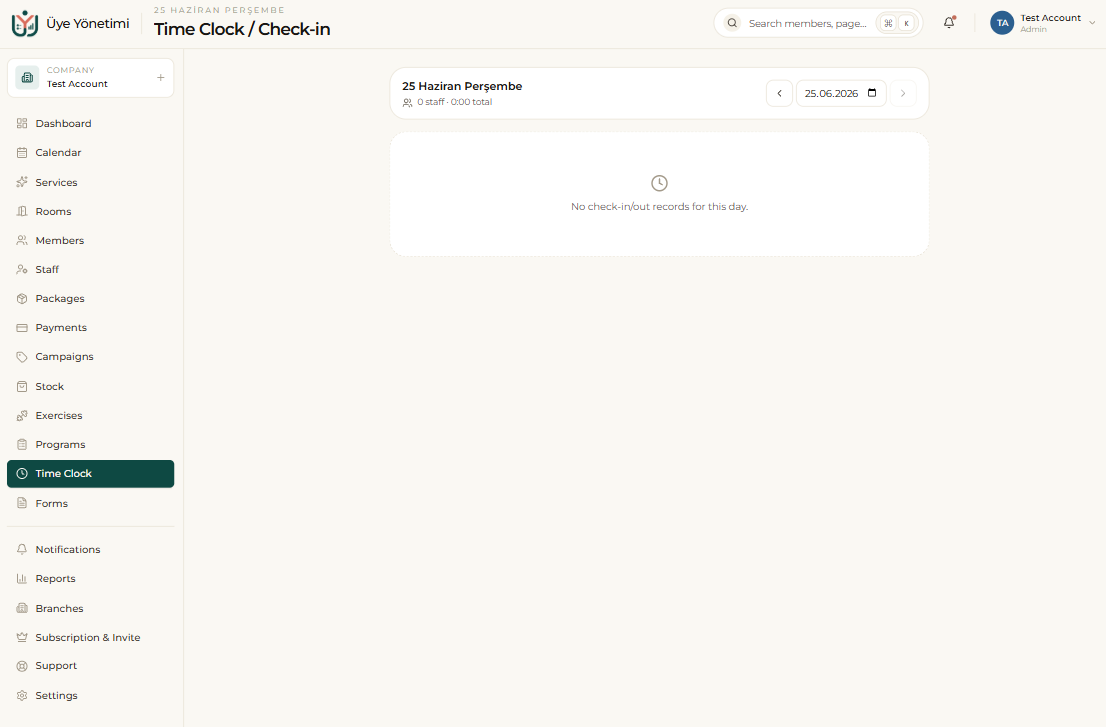
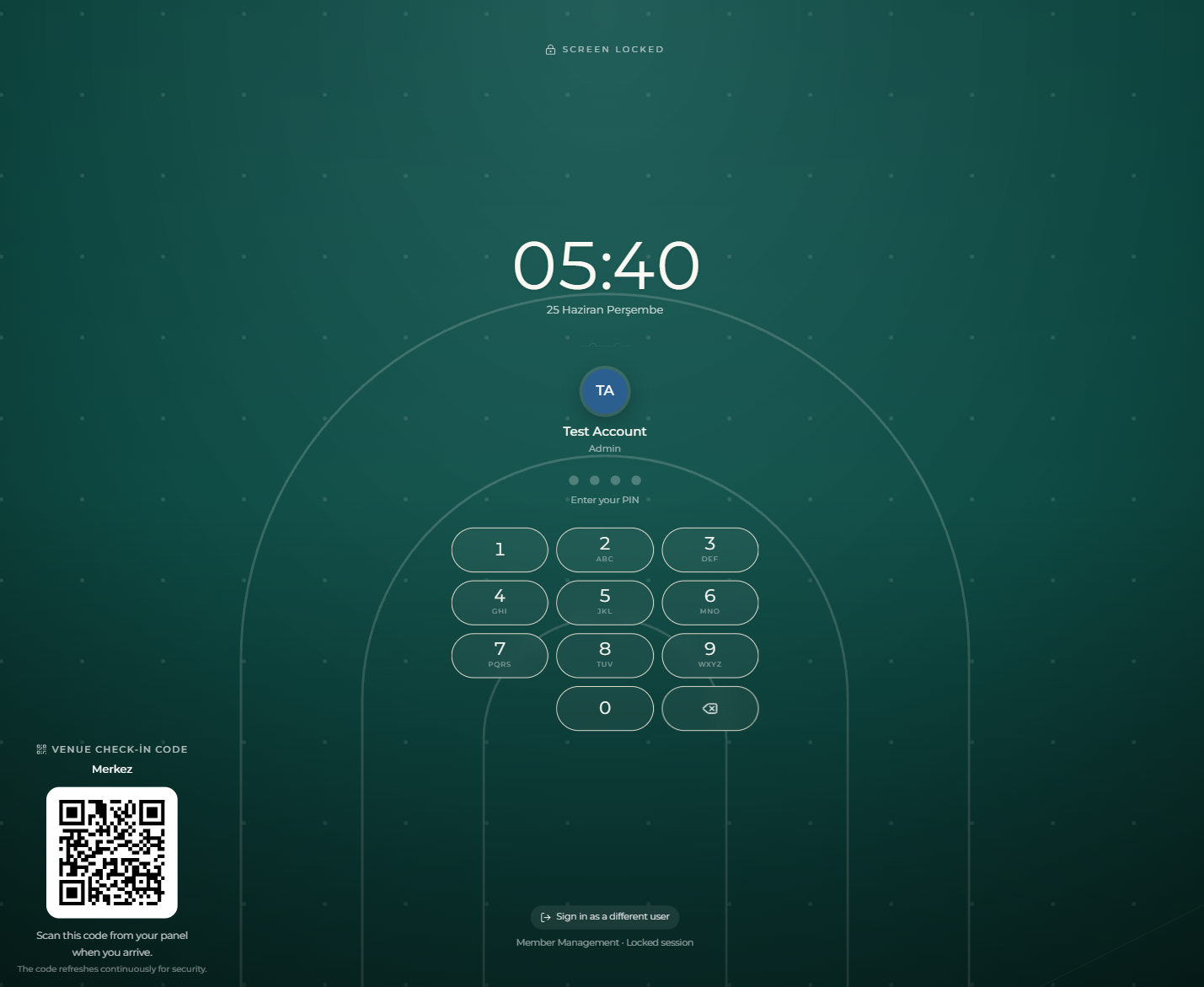
Time tracking records your staff’s working hours automatically instead of keeping them by hand. A private QR code is generated for each branch; when staff arrive and leave, they scan this QR code from their phone to clock in and out.
Each scan is recorded with the time, person and branch. So the answer to “who came when, and left when?” rests on the record the system keeps, not on a notebook or the person’s word.
Member class attendance (QR)
The same QR system works not only for staff but for members too. When a member arrives for a class, they scan the branch’s QR code from their phone to mark that they attended that day’s class.
This attendance is recorded against the relevant appointment; the member is marked “attended” and the session is deducted from their package automatically. So you don’t have to take attendance by hand, and who attended which class is on record. You can turn member class attendance on or off from “Settings › Organization › Check-in & Attendance”.
Shift plan and working time
You define a weekly shift plan for your staff; who works on which day and in which time range is known in advance. The system compares the real check-ins/outs coming from the QR with the planned shift.
Each staff member’s daily and monthly total working time is calculated automatically; situations such as lateness, leaving early or a missing day appear clearly in the report.
Time and overtime calculation
Hours worked beyond the planned time are calculated separately as overtime. At the end of the month you get each staff member’s regular and overtime totals in one click; you use this data in payroll and earnings calculations.
Step by step
- 1 Open the “Time Clock” page from the left menu.
- 2 For the relevant branch, choose “Generate QR code”; post the code at the entrance or share it with staff.
- 3 Define the staff’s weekly shift plan (days and working hours).
- 4 When staff arrive and leave, have them scan the QR from their phone; the check-in/out is recorded with the time.
- 5 Turn on member class attendance from “Settings › Organization”; when a member arrives they scan the same QR to mark that day’s class — the appointment becomes “attended” and the session is deducted from their package.
- 6 Track daily and monthly working time and lateness/early-leave situations from the time report.
- 7 At the end of the month, take the regular and overtime totals and use them in payroll/earnings calculations.
QR check-in/out records work hours without leaving them to the person’s word; the end-of-month calculation is indisputable.